No results. Contact us at support@rinly.io.
Getting started
New to Rinly? Here are the steps to get Rinly working for you. Start by adding one task and answering Rinly’s call.
Everything you add to Rinly shows up as a “task.” “Today’s Promises” on the home screen is your list of tasks for the day.
Allow these permissions first#
Rinly lets you know about your plans with a phone call, and you answer by voice. To make that work, Rinly asks for these permissions.
- Notifications: Used to deliver calls and notifications. If this is off, neither calls nor notifications will reach you.
- Microphone: Used to hear your voice during calls. Your voice is turned into text, and Rinly never keeps a recording. On iPhone, you’ll also be asked to allow “Speech Recognition.”
- Full-screen notifications (Android): Used so you can answer a call that comes in while your phone is locked. If this is off, you’ll have to unlock your phone every time you answer.
If you didn’t allow these at first, you can turn them on later for Rinly in your device’s Settings app. On Android, you can open the full-screen notification setting from Rinly’s “Settings” → “Calls on lock screen (full-screen).”
Add your first task#
The easiest way is to type all your plans into the chat at once. Open the chat from the speech bubble at the bottom right of the home screen and type something like “Gym at 9 tomorrow morning, work on slides in the afternoon.” Rinly splits it into task cards. Check them over, then tap a button like “Add 2 Tasks” to add them. If a time is unclear, Rinly may ask you to clarify.
To try a call right away, add a task that starts a little later, like “Clean my room in 20 minutes.”
To add tasks one at a time, tap the ”+” at the bottom center of the screen. To set the date, how it repeats, or the reminder, open “More Options.”
You can choose “Call,” “Notification,” or “No reminder” as the reminder method. Tasks you add yourself use “Call” by default, and Rinly reminds you 15 minutes before the start time. To change how many minutes before, use “When” on each task.
Pick up your first call#
As a task’s start time gets close (15 minutes before, by default), Rinly calls you. The call comes through the app, so there are no phone charges.
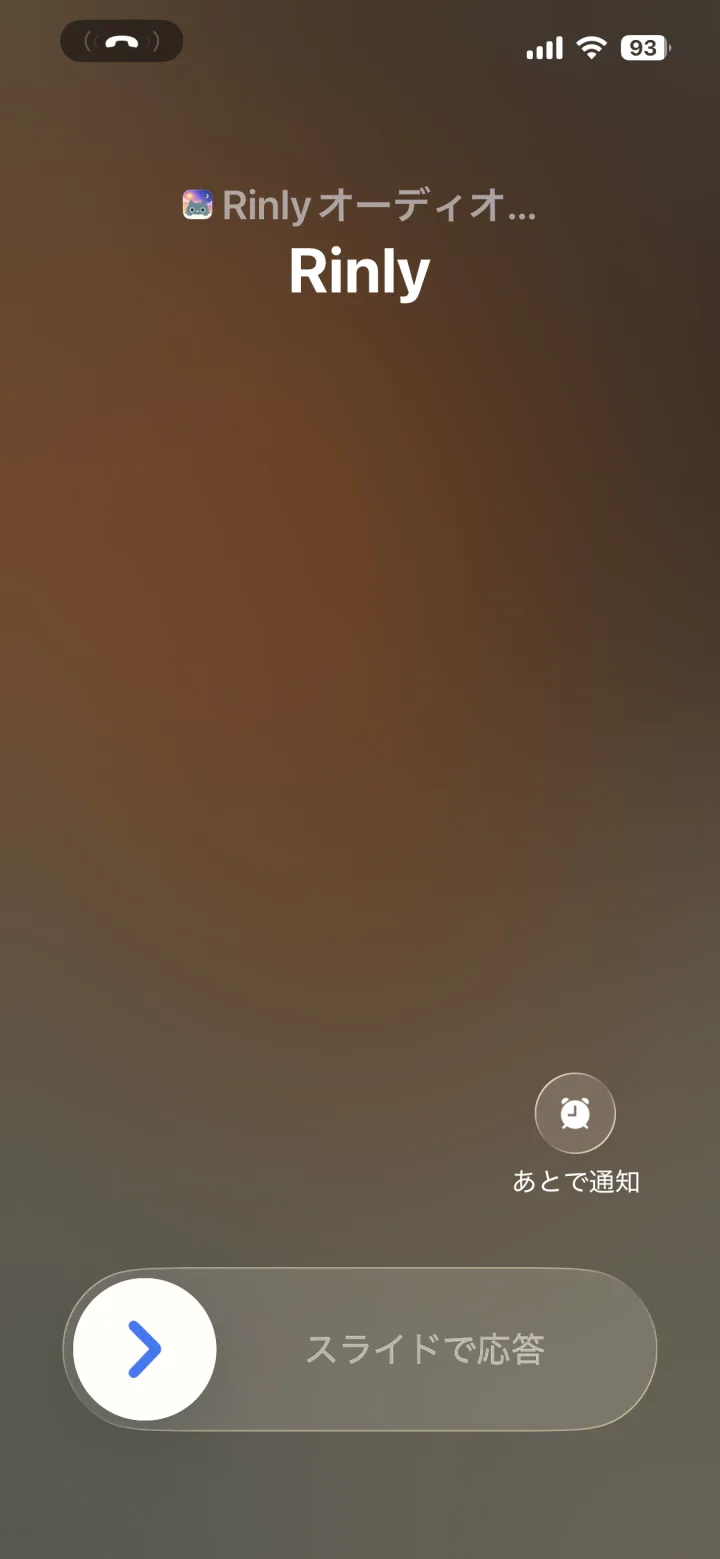
On this screen, “Remind Me” (the “Later” button on Android) declines the call. If you decline, you’ll get a notification with “Do It” and “Later” buttons instead. If you want to push the time back, answer the call and say “later.”
Once you answer, just reply by voice.
- “I’ll do it”: You commit to doing it at that time.
- “Later”: Rinly asks how many minutes from now, so answer with something like “20 minutes” (up to 60 minutes).
If it’s hard to talk, you can also answer with the buttons on the screen. If you missed the call, you can call back from “Missed call” on the home screen within 30 minutes (I missed a call).
When you’re done, tap the task’s checkmark on the home screen to mark it complete. You can also tap the task and choose “Complete” from the menu. If you want to get going right away, choose “Start Task” from the menu to work on it for just 2 minutes (Start with just 2 minutes).
Set your morning call time#
The morning call reads your tasks for the day aloud. Go to “Settings” → “Morning call,” turn on “Get a morning call,” and set the time.
Plans you ask Rinly to add during the call, like “Add a dentist appointment this afternoon,” aren’t added on the spot. Rinly holds them until after the call. Check them in “Plans from your call,” then tap a button like “Add 1 Task” to add them.
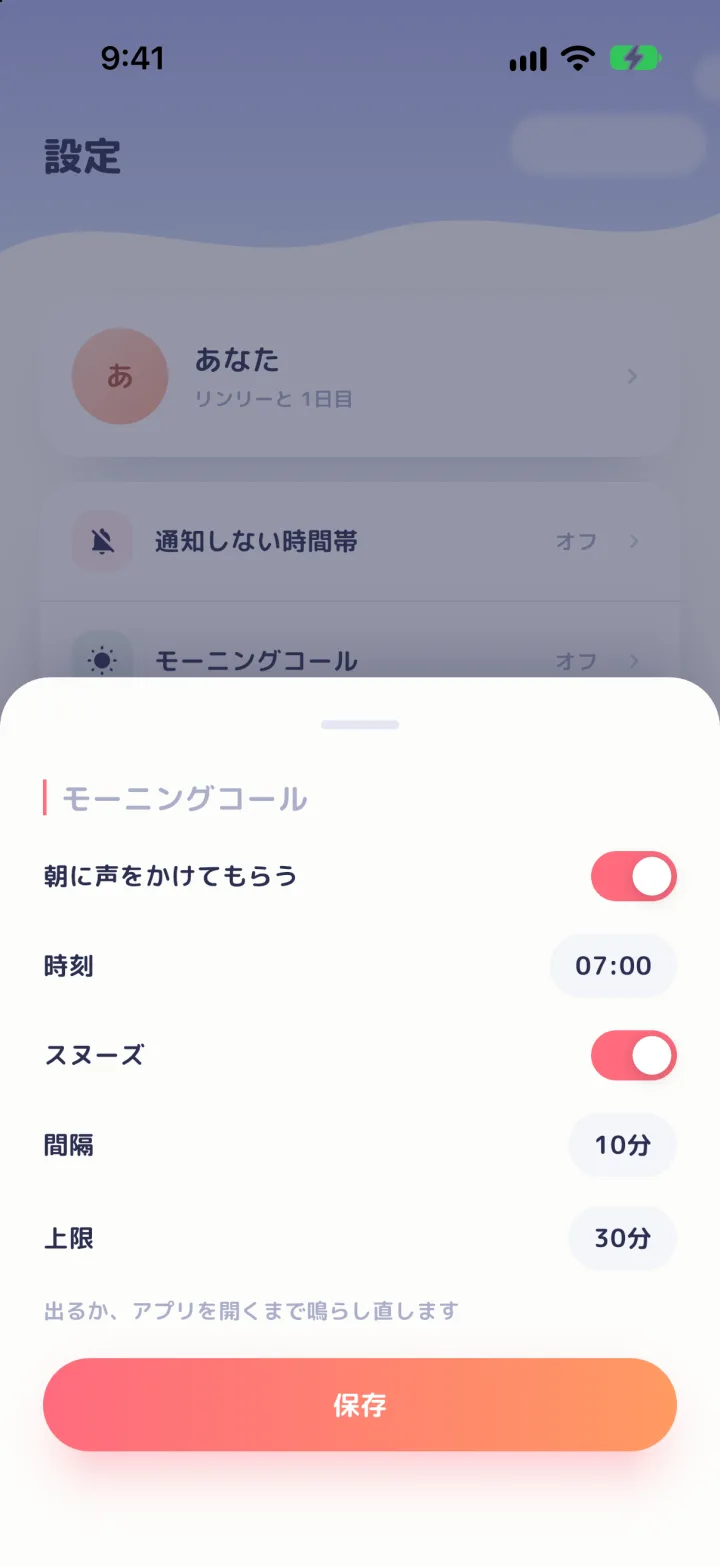
If you miss the morning call, Rinly calls again with “Snooze.” By default, it rings again every 10 minutes for up to 30 minutes after the first call. It stops when you answer or open the app. You can change the interval and limit on the same screen.
Look back on your day in a few words#
At the end of the day, you can look back on that day’s tasks. You’ll see “Done” and “Left to do,” and you can move anything left over with “Tomorrow” or “Another Day.” You can also jot down a quick note about what you noticed that day.
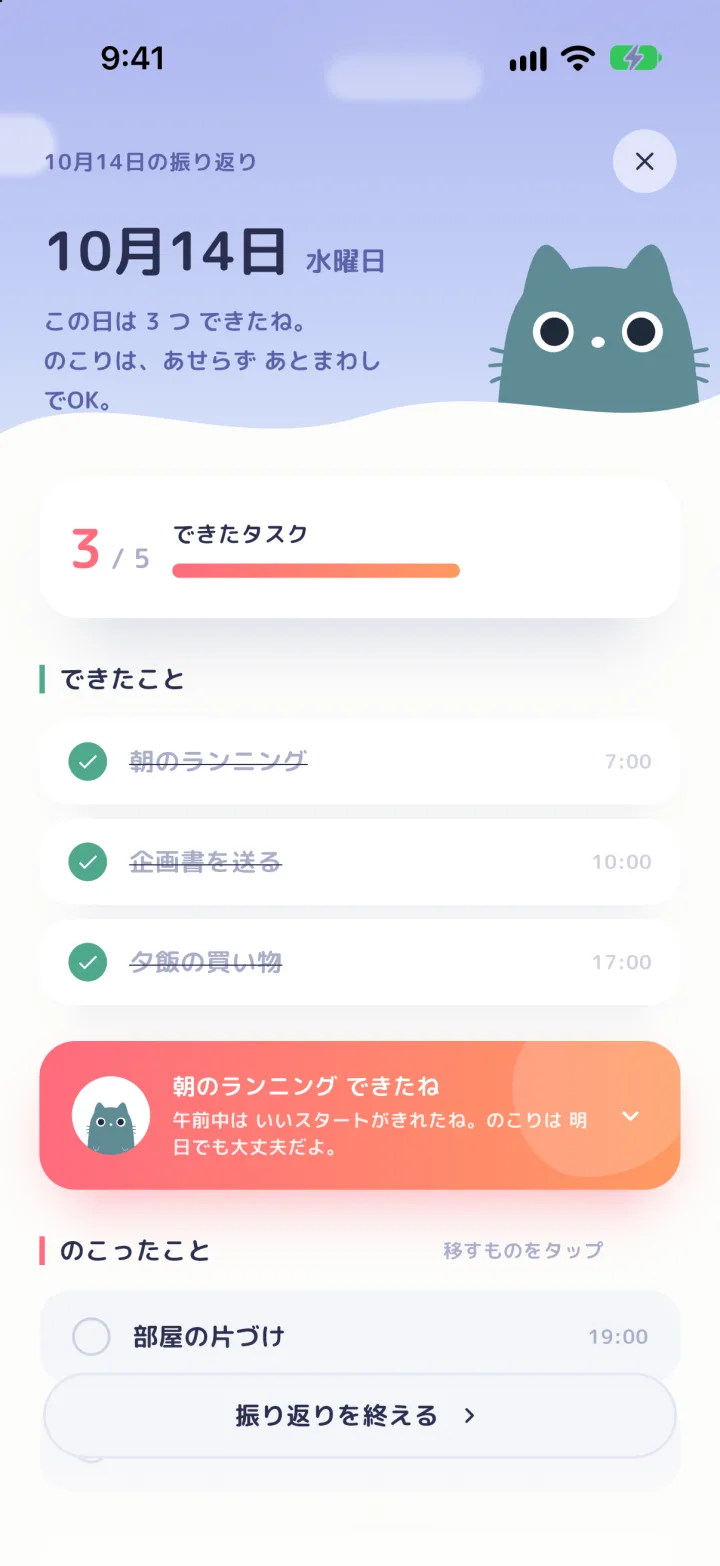
If you’d like a reminder at a set time, go to “Settings” → “Reflection” and turn on “Daily reflection” (it’s off by default). You can also turn on “Weekly reflection” for a reminder once a week. These come as notifications, not calls, and tapping one opens the reflection screen.
Reflection isn’t about blaming yourself for what you didn’t get done. Even a few words can be helpful when you read them back later.
Connect Google Calendar (optional)#
Connecting Google Calendar lets you see your events in Rinly’s list. Go to “Settings” → “Calendar sync” → “Connect,” then choose which calendars to show in “Calendars to show.”
Calendar events don’t automatically become Rinly tasks. To turn an event into a task, open it and choose “Add Reminder.” Rinly never changes your Google Calendar events.
There’s also a setting so your phone doesn’t ring in the middle of a meeting (Notifications instead of calls during meetings).
Contact us
If this didn’t solve your problem, or to report a bug or request access to or deletion of your data, email us at the address below.
support@rinly.io