No results. Contact us at support@rinly.io.
Tips
These tips make Rinly easier to stick with. They aren’t about pushing yourself harder, but about making it easier to get started.
Start with just 2 minutes#
The bigger the job, the harder it feels to get started. In Rinly, simply getting started counts as a win.
Choose “Start Task” from a task’s menu and you’ll see three steps: “Started the task,” “Focused for 2 minutes,” and “Finished the task.” Once 2 minutes are up, it’s fine to stop. If you feel like keeping going, carry on.
On the same screen, “Common distractions and fixes” shows what to do when you get distracted. For example, for “Checking social media,” try “Leave your phone in another room.”
Say "I'll do it" out loud#
When you answer a call and say “I’ll do it,” you’ve made your promise right then. Saying it out loud makes you more likely to follow through than just thinking it.
Short answers are fine. On days you don’t feel like it, saying “later” to push the time back makes it easier to keep going than letting the call pass in silence.
You can also tap “Commit to this on a call” on the screen where you start a task to call Rinly and make a promise.
Schedule important promises for the times you usually get things done#
“By time of day” in “Report” shows which times of day you’re best at keeping promises. After you’ve completed a few promises with set times, your strongest times start to show.
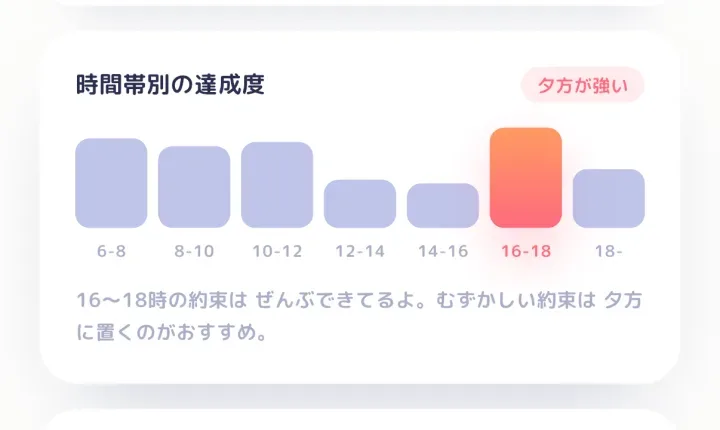
Try scheduling important or difficult promises for the same times of day when you’ve gotten things done before. You can switch the report between “Day,” “Week,” “Month,” and “6 Mo.”
Keep goals small#
The trick with goals is to start small. With “New Promise” on the “Goals” tab, choose how you’ll measure it: “Per week” or “Per month” for a number of times, or “Days of week” for specific days. For example, try starting with something like “Take a walk twice a week.”
After creating a goal, tap “Suggest Tasks” to get ideas for repeating tasks that fit it. Add the ones you like with “Use This.”
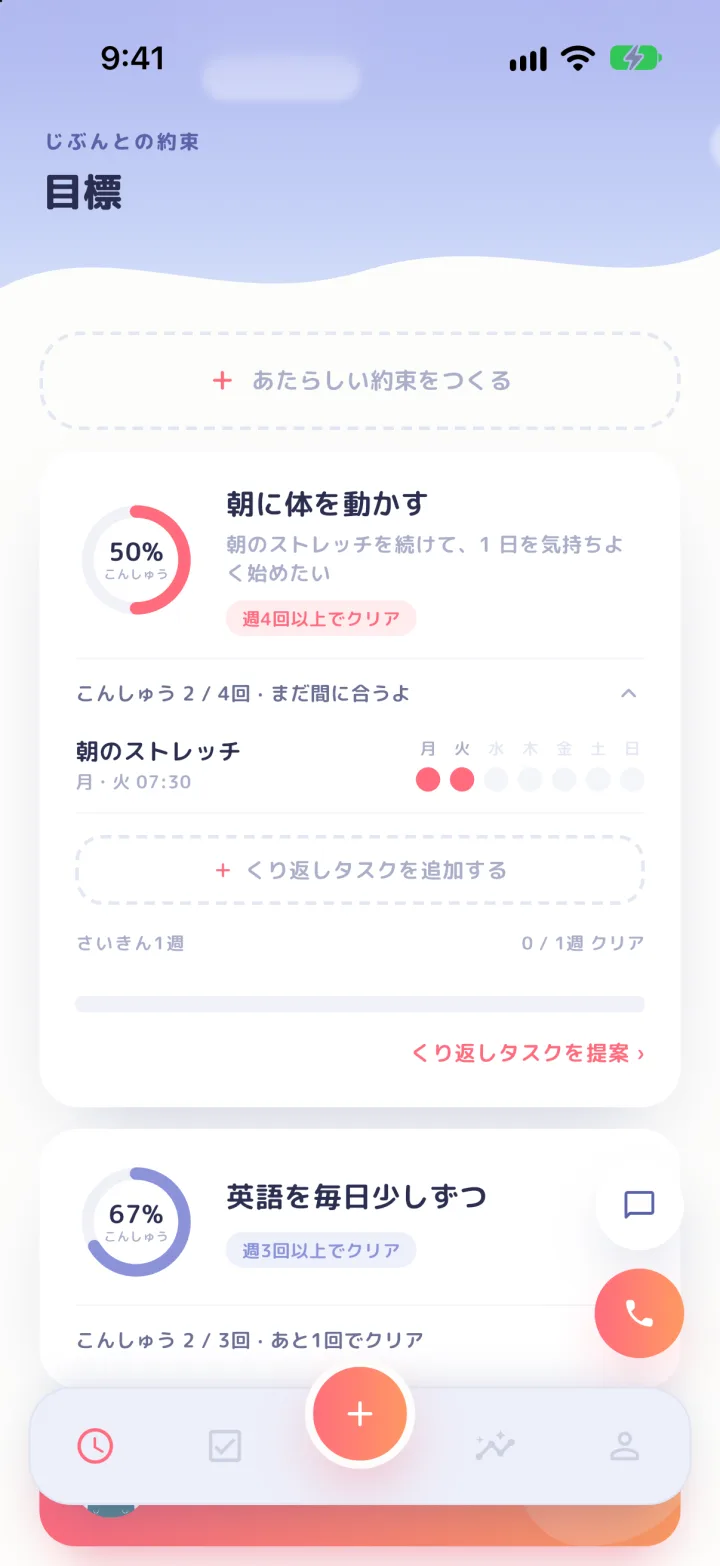
If you’re not sure how to set a goal, tap “Want to plan your goal together?” to work it out in chat.
Prep check-in#
When you add a plan that involves going out or bringing things, Rinly checks in once, about a day before, to ask how you’d like to prepare. Same-day plans count too, as long as the start time is at least 3 hours away. Plans that don’t need prep tips won’t get a check-in.
If the check-in comes as a call, Rinly adds the prep tips as tasks ahead of time. These tasks appear in that day’s list on the home screen, just like your other tasks. If you don’t need one, say so during the call, or delete it later like any other task. If you don’t answer the call, the tasks that were added are removed, and you’ll get a notification instead.
If it comes as a notification, tap it, then choose the tips you want to add on the screen that opens.
You can choose “Call” or “Notification” under “Delivery” in “Settings” → “Prep check-in” (it’s set to Call by default).
Notifications instead of calls during meetings#
If you’ve connected Google Calendar, Rinly notifies you instead of calling while you’re in the middle of an event. “No calls during events” is on from the start, and it only applies to your main calendar.
To include other calendars, go to “Settings” → “Calendar sync” and turn on “No calls during this calendar’s events” for each calendar. All-day events and events marked as “Free” don’t stop Rinly from calling.
If you don’t want calls at the same time every day, like while you’re sleeping, go to “Settings” → “Quiet hours” and turn on “Silence these hours.” Reminders for tasks during that time come after the quiet hours end.
Choose your nudge style#
You can choose the tone Rinly uses in “Settings” → “Nudge style.”
- “Gentle”: Kind and unhurried
- “Normal”: Friendly, without being pushy (this is the default)
- “Firm”: Gives you a push to start right now
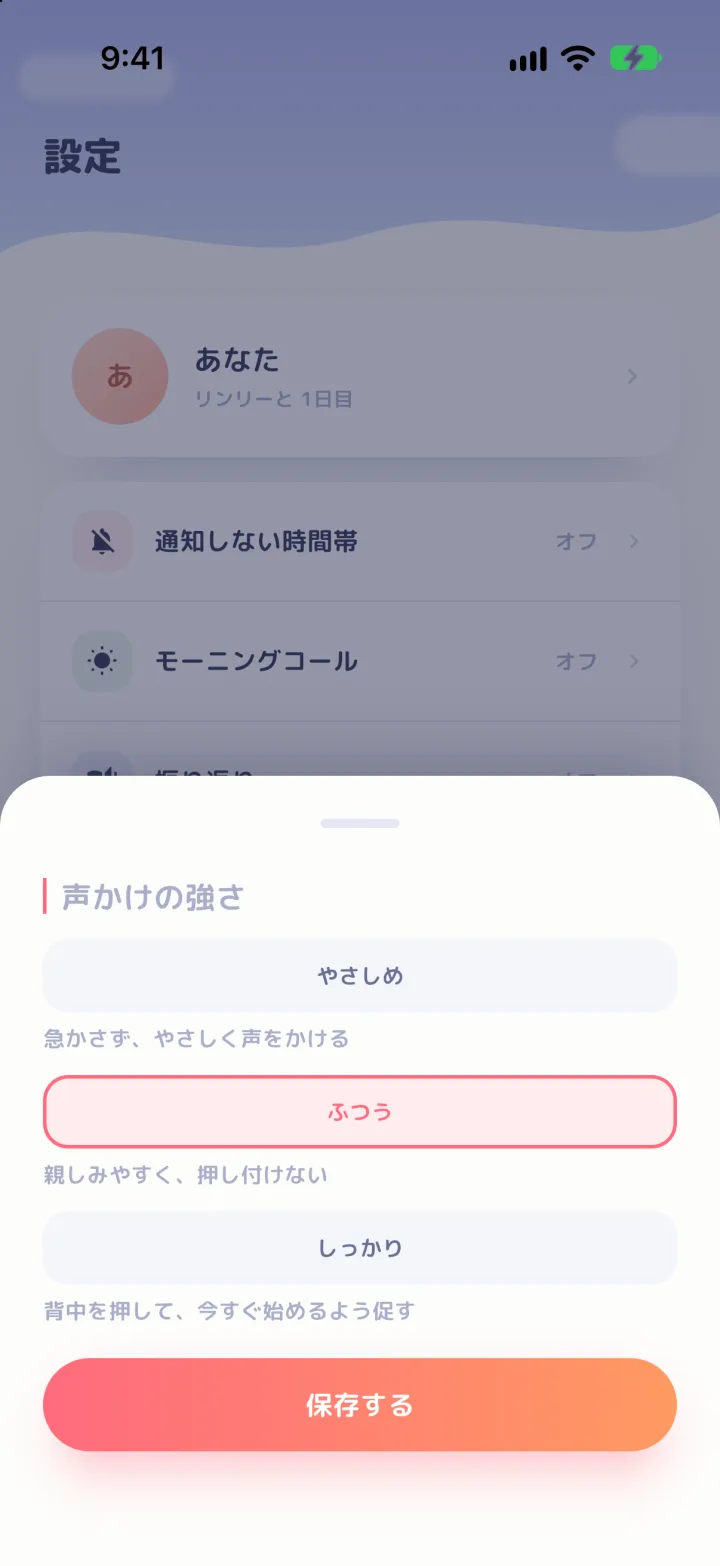
Even with “Firm,” Rinly never blames or scolds you. What changes is the wording of reminder calls and notifications. The number and timing of calls stay the same.
What Rinly remembers#
Rinly remembers your circumstances and preferences from what you share in calls, chats, and reflections, and uses them in later conversations.
You can see what it remembers in “Settings” → “What Rinly remembers.” Tap “Show sources” to see what you said that led Rinly to remember it. If something is wrong, or you’d rather Rinly not remember it, remove it with “Forget.”
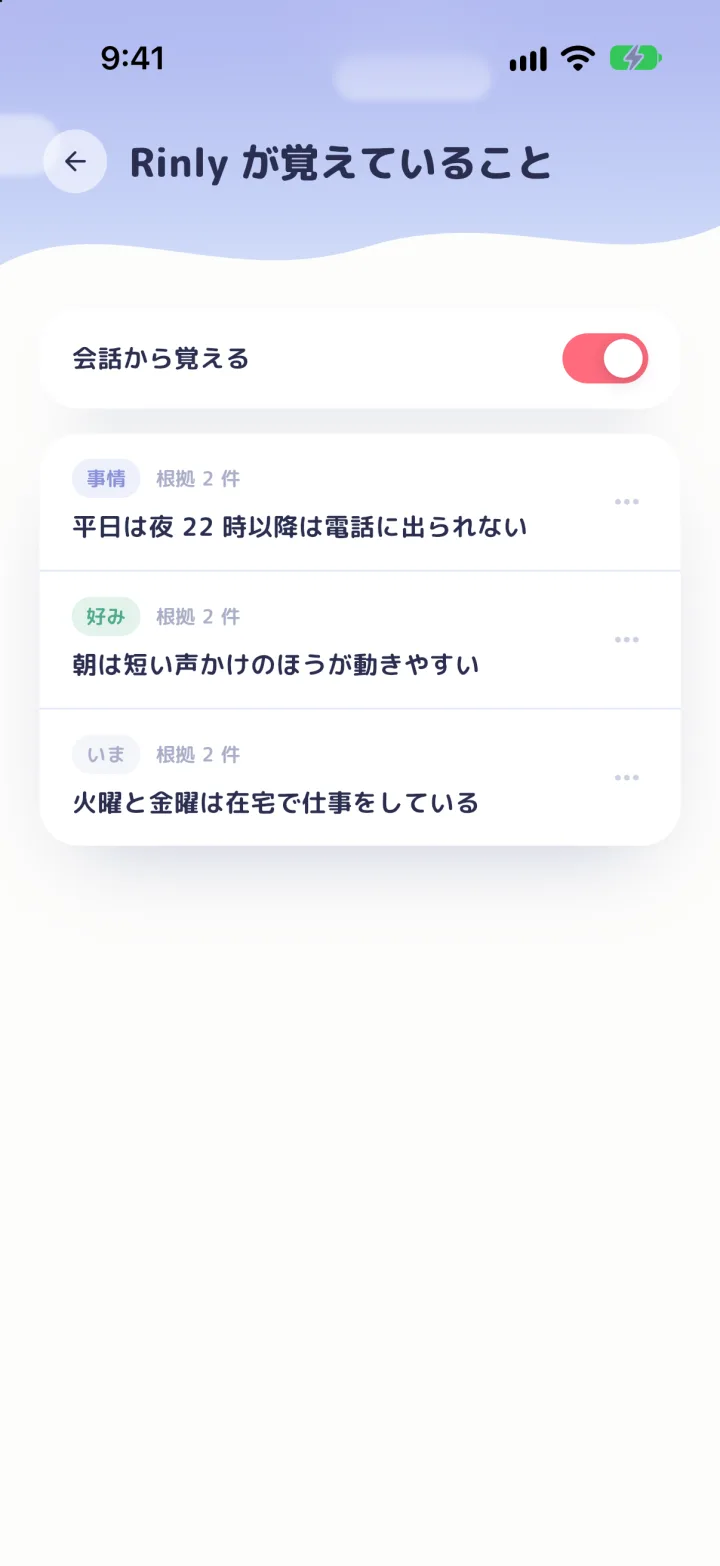
If you don’t want Rinly to remember anything new, turn off “Learn from conversations.” While it’s off, Rinly won’t remember anything new, but what it already remembers stays.
Home screen widgets#
Add a widget to your home screen to check your next promise or call Rinly without opening the app.
- Small size: “Call” starts a call with Rinly.
- Wide size: Shows your next promise and its time. It has buttons for “Call,” chat, and ”+” (add a task). Tap the promise to open that task’s menu.
On iPhone, widgets need iOS 17 or later. Touch and hold an empty area of your home screen, tap “Edit” → “Add Widget,” and choose Rinly. On Android, touch and hold your home screen, choose “Widgets,” and pick Rinly (the wording varies by device).
More features#
- Search tasks: Find past and upcoming tasks by words in their titles or notes.
- Notifications: Tap the bell on the home screen to look back through notifications you’ve received.
- Share this week: From “Share this week” in “Report,” turn your week’s progress into a card styled like an incoming call from Rinly, then post or save it. Task names aren’t included.
- Theme: In “Settings” → “Theme,” choose “Day,” “Sunset,” “Night,” or “Auto.”
Contact us
If this didn’t solve your problem, or to report a bug or request access to or deletion of your data, email us at the address below.
support@rinly.io