No results. Contact us at support@rinly.io.
FAQ
Answers to common questions for when you get stuck. If you can’t find what you need here, contact us using the details at the bottom of the page.
Calls & Notifications
My phone doesn't ring#
Check the following, in order.
- Notification permission: In your device’s Settings app, make sure notifications are on for Rinly.
- Focus, Do Not Disturb, and Low Power Mode / Battery Saver: While these are on, calls may not ring or may arrive late.
- The task’s reminder method: Tasks set to “Notification” arrive as a notification, not a call. You won’t get anything for tasks set to “No reminder” or “No reminders for this task.”
- Quiet hours: Rinly won’t ring during the hours set in “Settings” → “Quiet hours,” and reminders arrive after those hours end.
- Your plan: If your free trial has ended and you haven’t subscribed to a plan, neither calls nor notifications will arrive.
If you got a notification instead of a call, also see I got a notification instead of a call.
I got a notification instead of a call#
This is normal. In these cases, Rinly notifies you instead of calling:
- You’re in the middle of a calendar event (only for calendars with “No calls during events” turned on)
- You declined a Rinly call within the last 10 minutes
- The reminder was delayed well past the scheduled time (15 minutes or more), for example because of connection issues
- You missed several calls, and this was the final reminder
You can answer from the notification too. On iPhone, touch and hold the notification to choose “Do It” or “Later.”
I missed a call#
If you missed a call, “Missed call” appears at the top of the home screen. Tap “Call Back” to talk with Rinly. You can call back within 30 minutes of the missed call.
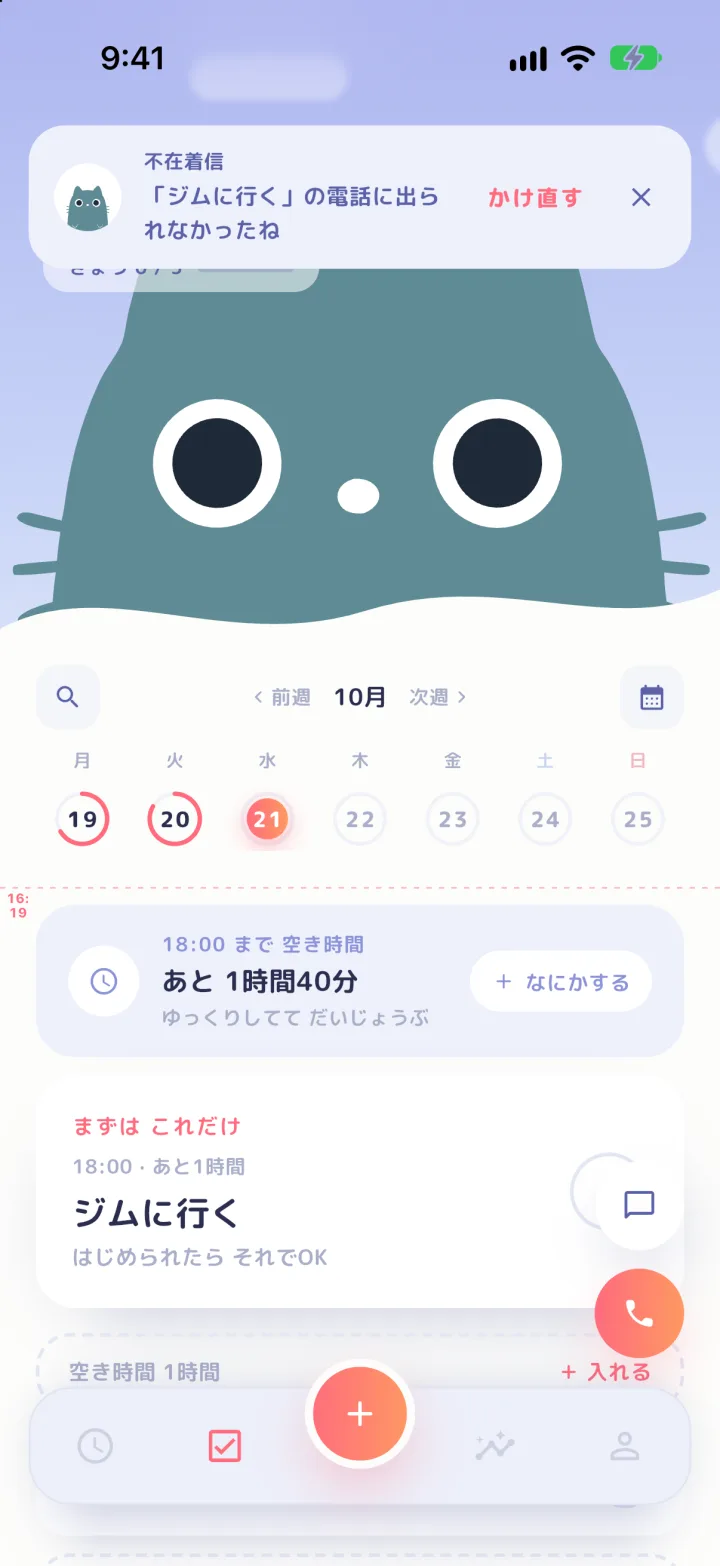
You can’t call back from the call history in the iPhone Phone app. Instead, open Rinly and call back from its home screen, or from the notification you received.
If you missed a morning call, you can read what Rinly had to say from the “Your Morning Brief is ready” notification instead of calling back.
I want to do it later#
During a call, say “later” and Rinly will ask how many minutes from now. Answer with something like “20 minutes,” and Rinly will remind you again then (up to 60 minutes). If you tap “Snooze” on the screen, it’s set for 30 minutes later.
On iPhone, if you touch and hold a notification and choose “Later,” you can pick “In 10 minutes,” “In 30 minutes,” or “In 60 minutes.”
Tapping “Remind Me” on the iPhone incoming call screen while your phone is locked, or “Later” on the Android incoming call screen, declines the call. To push the time back, answer the call and say “later.”
Plans I asked Rinly to add during the morning call weren't added#
Plans you ask Rinly to add during the morning call aren’t added on the spot. Rinly holds them until you tap the button on the “Plans from your call” screen, which appears after the call. All the cards start out selected, so tap any you don’t need to deselect them, then tap a button like “Add 1 Task.” Selecting cards alone doesn’t add them.
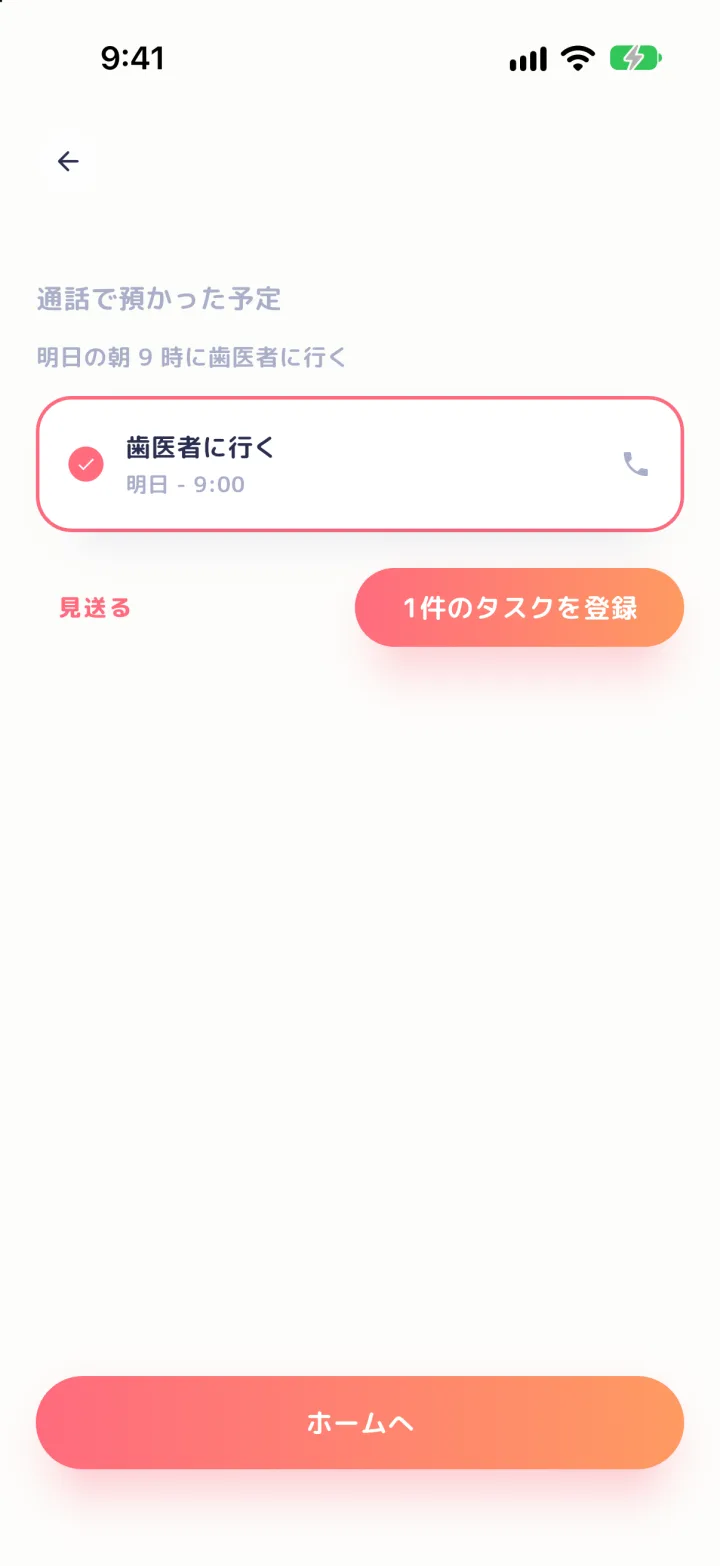
To check them later, tap “Review” under “Plans from calls” on the home screen. If you see “Preparing a draft,” wait a moment and try again.
On Android, I have to unlock my phone every time I answer a call while it's locked#
If full-screen notifications aren’t allowed, you’ll be asked to unlock your phone every time you answer a call while it’s locked.
If Rinly’s “Settings” → “Calls on lock screen (full-screen)” shows “Not allowed,” tap it to open Android settings, then turn on full-screen notifications for Rinly.
Rinly can't hear me / I didn't allow the microphone#
Without microphone permission, Rinly can’t hear your voice. Open Rinly in your device’s Settings app and turn on “Microphone.” On iPhone, also turn on “Speech Recognition.”
Even without permission, you can answer with the buttons on the call screen or by typing.
Rinly only receives the text of what you said and doesn’t keep recordings (How is what I say handled?).
Prep check-ins switched to notifications or stopped#
“Prep check-in” automatically scales back if you don’t respond for a while.
- If you miss calls several days in a row: Check-ins come as notifications instead of calls. To switch back to calls, choose “Call” again under “Delivery” in “Settings” → “Prep check-in.”
- If you keep skipping them: Rinly pauses making new suggestions. Tap “Resume” on the same screen to turn them back on.
Plans
Is there a free trial?#
Yes. If you’re new, you can try Rinly free for 7 days.
- How to start: On the plan screen that appears after you log in, choose monthly or annual and tap “Start Free Trial” to start your trial. Just creating an account doesn’t start it.
- End date: You can check it in “Settings” → “Plan & billing.”
- When you’ll be charged: If you don’t cancel before the end date, you’ll be charged for the plan you chose, and it renews automatically after that.
- To stop: If you don’t want to be charged, cancel before the end date (I want to cancel).
Rinly requires a subscription plan. When your plan ends, calls, notifications, and conversations with Rinly are no longer available.
I want to cancel#
Cancel from your subscription settings in the App Store or Google Play. You can also open them from Rinly’s “Settings” → “Plan & billing” → “Manage Subscription.”
If you cancel during the trial, you won’t be charged. Deleting the app doesn’t cancel your subscription.
My plan disappeared after I switched phones#
Log in with the same account, then tap “Settings” → “Plan & billing” → “Restore Purchases.”
You need to be signed in to the store with the same Apple ID or Google account you used to buy it. If you see “No purchases to restore,” check that your store account is the same one you used to buy it.
Account & Data
How do I log in?#
You can choose “Continue with Apple,” “Continue with Google,” or “Continue with Email.” With email, you just enter the 6-digit code we send you, with no password needed. If the code doesn’t arrive, check your spam folder too.
When you switch phones, log in the same way you did before. If you log in a different way, you may end up with a separate account.
I want to delete my account#
You can delete your account from “Delete account” at the very bottom of “Settings.” Once you delete it, you can’t log in anymore, and your promises, records, and settings are permanently erased after 30 days. This can’t be undone.
Deleting your account doesn’t automatically cancel your store subscription. Cancel your subscription first (I want to cancel).
If you’ve deleted the app or can’t log in, send “Account deletion request” to support@rinly.io from the email address you registered with. We’ll confirm it’s you and then delete your account. The data that’s deleted, and when, is the same as when you delete your account in the app. Billing records are kept for as long as the law requires.
How is what I say handled?#
Your voice on calls is turned into text by your device’s speech recognition. iPhone uses Apple’s speech recognition and Android uses Google’s, so your voice is sent to Apple or Google at that point. Rinly’s servers only receive the text, and Rinly never keeps a recording.
The text is sent to our AI provider to create replies, but it’s never used to train AI.
You can review or delete the details and preferences Rinly has remembered from your conversations in “Settings” → “What Rinly remembers” (What Rinly remembers).
For details, see our Privacy Policy.
Other
Can I use it in English?#
Rinly works in Japanese and English. The language follows your device’s language setting and can’t be changed inside the app. On devices set to any other language, Rinly appears in English.
Which devices are supported?#
Rinly works on iPhone with iOS 15 or later and on Android 7.0 or later. Home screen widgets require iOS 17 or later on iPhone.
Contact us
If this didn’t solve your problem, or to report a bug or request access to or deletion of your data, email us at the address below.
support@rinly.io